Keyboard switches explained — linear vs tactile vs clicky
A plain-English guide to mechanical keyboard switches — the three families with real examples and gram weights, how they feel and sound, and which suits typing, coding or a shared office.
Mechanical switches come in three families: linear (smooth, quiet), tactile (a felt bump on each press), and clicky (that bump plus an audible click). If you're not sure where to start: pick tactile for a shared space or general coding, linear if you want smooth and quiet or you game a lot, and clicky only if you have a room to yourself and love the sound. That's the whole decision in one line. The rest of this explains why, with real switch names and the gram weights that actually change how a board feels.
What a switch even is
Under every keycap sits a switch — a spring-loaded mechanism that registers the press. Push down and the switch actuates (sends the keystroke) partway through its travel, usually around 2 mm down, before bottoming out at roughly 4 mm. Two numbers describe how it feels: actuation force, measured in grams (how hard you press to register a key), and whether the switch is smooth or has a bump. Lighter switches (around 45 g) feel fast and effortless; heavier ones (60 g and up) resist accidental presses and can feel more deliberate. Everything else — sound, smoothness, "thock" — flows from the switch type, the spring, and the board around it.
The three families
Linear — smooth, quiet, no bump
Linear switches press straight down with no tactile step. Popular examples: Cherry MX Red (~45 g), Gateron Yellow (~50 g), Cherry MX Black (~60 g) for a heavier feel. They're quiet (no click), fast, and favored by gamers and by typists who like a clean, uninterrupted keypress. The tradeoff: with no bump to signal actuation, some people bottom out harder and mistype more until they adjust.
Tactile — a bump you feel, no loud click
Tactile switches add a small bump partway down so you feel the moment the key registers. Examples: Cherry MX Brown (~55 g), the smoother and rounder Boba U4 (~62 g), Gateron Brown (~55 g). This is the most broadly recommended family for coding and general work — you get feedback without waking the room. The bump on a Brown is subtle; if you want a stronger, more defined bump, a Boba U4 or similar "T" tactile delivers it.
Clicky — bump plus an audible click
Clicky switches add a mechanism that produces a sharp click at actuation. Examples: Cherry MX Blue (~50 g), Kailh Box White (~50 g). They're satisfying and precise-feeling, and genuinely loud — great alone, a real problem on a video call or in an open office. Buy these only if the sound is a feature for you and no one else has to hear it.
How they sound and feel next to each other
- Quietest to loudest: linear (quietest) → tactile → clicky (loudest). Note "quiet linear" still makes a bottom-out thud unless you get silent variants with dampening.
- Least to most feedback: linear (none) → tactile (a bump) → clicky (a bump plus a click).
- Force: most stock switches sit between 45 g and 62 g. Under ~45 g feels feather-light and can cause typos; over ~65 g gets tiring for fast typists. The middle is safe for most hands.
None of this is precise across brands — a Gateron Brown and a Cherry MX Brown both call themselves tactile but feel different. Treat the family and the gram weight as a starting point, not a guarantee.
Which suits typing, coding, or a shared office
- General typing and coding: tactile. Cherry MX Brown or Boba U4 give feedback without noise and forgive the odd heavy finger. It's the default we recommend for most desks.
- Gaming plus coding, or you just prefer smooth: linear. Cherry MX Red or Gateron Yellow are quiet and fast; many programmers use them happily.
- Shared office, open plan, or you're often on calls: tactile or silent linear. Skip clicky entirely — your coworkers will notice, and not fondly.
- A room to yourself and you love the sound: clicky. Cherry MX Blue or Kailh Box White, and enjoy it.
The cheapest way to choose without guessing: buy a switch tester (a small block with 6–9 different switches) for a few dollars, or buy a hot-swap board so you can try a pack of switches and change your mind for $20 instead of buying a whole new keyboard.
Silent switches, and why the board matters as much as the switch
Two things worth knowing before you commit. First, most families have silent variants — silent linears and silent tactiles use built-in dampeners to soften the bottom-out and the return, dropping the noise further than a standard switch. If you're on frequent calls but want a tactile bump, a silent tactile is the sweet spot. Second, the switch is only part of the sound and feel: the same Cherry MX Brown feels and sounds different in a hollow budget case than in a well-built board with foam and tuned stabilizers. Don't judge a switch by one bad board, or expect a great switch to rescue a cheap one. Feel comes from the whole package.
A quick reference you can act on
- Want quiet and smooth: Cherry MX Red (
45 g) or Gateron Yellow (50 g). Add a silent variant if you're near others. - Want feedback for coding/typing: Cherry MX Brown (
55 g) for a subtle bump, Boba U4 (62 g) for a stronger one. - Want the click and have the room: Cherry MX Blue (
50 g) or Kailh Box White (50 g). - Not sure at all: start tactile (Brown), on a hot-swap board, and change your mind cheaply later.
One honest sentence on lubing
Lubing (applying a thin grease to a switch's moving parts) makes switches smoother and quieter and is a real improvement, but it's a fiddly, optional hobby step — you do not need it to enjoy a mechanical keyboard, and factory-lubed switches exist if you want most of the benefit with none of the work.
Where to go next
Once you know the family you want, matching it to the right board is the next step — our type-by-type picks are in best mechanical keyboards for programming. If you're already planning to personalize the look, the same feel-first thinking applies to caps in custom keycap ideas. And to see how a keyboard fits a whole workspace, start from the complete desk setup guide or browse the mechanical keyboard gallery.
About this article
- Published by Marcus Lee — Marcus Lee has built and rewired more mechanical keyboards than he can count and covers switches, boards and keycaps for The Desk Nook.
- Claims fact-checked against cited sources: Yes
Keep reading
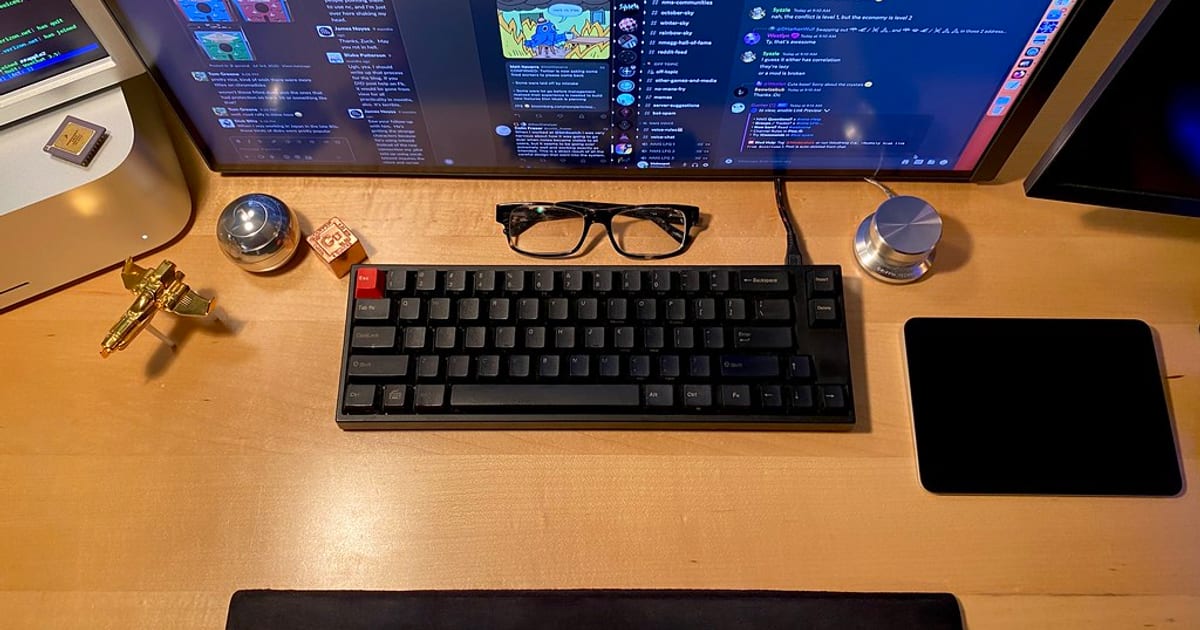
Best mechanical keyboards for programming (2026)
For most programmers the best keyboard is a 75% or TKL board with tactile switches, a hot swap PCB, and firmware you can remap — something like a well built…
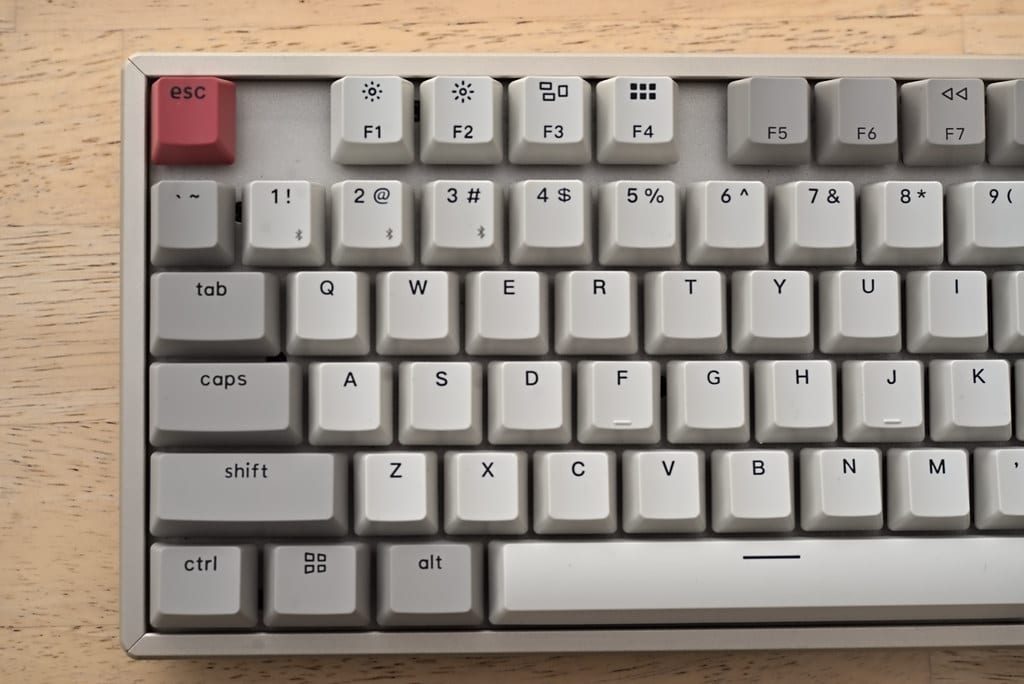 Gallery6 photos
Best budget mechanical keyboards under $100 (2026)
Under $100 in 2026 you can get a genuinely good mechanical keyboard — hot swap sockets, a 65% or 75% layout, decent PBT keycaps, and switches you'll be happy…