
Mac mini desk setup ideas for a clean, compact workspace
A Mac mini desk setup built around its tiny footprint — where to place the machine, a single-cable run to the monitor, a compact keyboard, a hub for ports, and hiding the power brick.
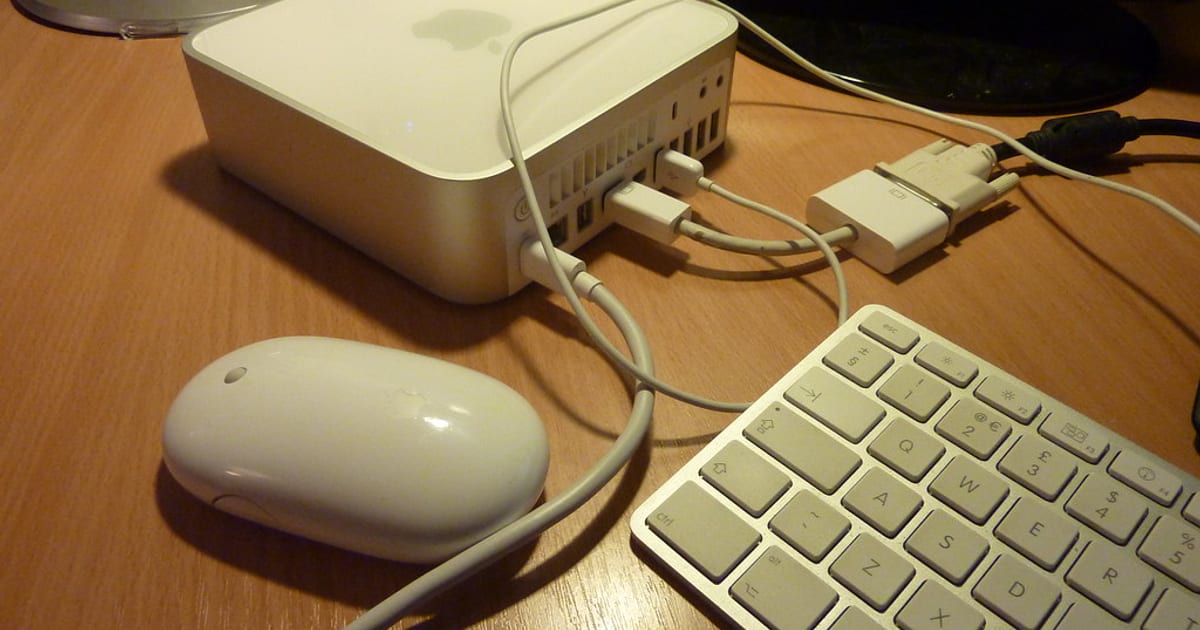
The Mac mini's whole appeal for a clean desk is that it almost isn't there. It's a small square block you can tuck under the monitor, mount behind the screen, or set on the desk as a deliberate little object — and once it's placed, the desk is just a display, a keyboard and a pointing device. Build the setup around that small footprint, run one cable to the monitor, and put every extra port and the power brick out of sight. That's the entire trick.
Let the small footprint set the whole plan
A tower or even most mini-PCs demand a spot; the Mac mini fits almost anywhere, and that's the design freedom you're paying for. The mistake is treating it like a big computer and building a big-computer desk around it. Don't. Start from "the machine disappears" and every other decision gets easier — you're really just designing a monitor-and-input setup with a tiny box hidden in it.
That makes the mini a natural fit for a minimalist desk setup: the thing generating all your work takes up less room than a hardback book, so the surface stays clear for actual work.
Where to put the machine
You've got three good options, and they trade off access against invisibility.
- On an under-monitor stand. Slide the mini into the shelf space beneath a monitor riser. It's hidden under the screen, ports stay reachable, and it lifts the display to a better height at the same time. This is the easiest win for most people.
- VESA-mounted behind the display. A tray or bracket holds the mini on the back of the monitor or the monitor arm. Now it's completely invisible and the desk is truly bare — the setup most single-monitor builds are chasing. The catch is that the ports face away from you, so plan a hub for the things you plug in and out.
- On the desk as an object. The mini is a nicely made aluminium square, and some people like seeing it. Set it on the corner, cables dressed and running straight off the back edge, and it looks intentional rather than hidden. This only works if the cable run behind it is genuinely tidy.
If you go VESA-behind-the-monitor, sort out port access before you mount it. Reaching blindly behind a screen for a USB port gets old fast. A small hub clamped to the desk edge, with the mini's rear ports feeding it, fixes this and keeps the everyday plugs in front of you.
One cable to the monitor
The cleanest Mac mini desks run a single cable from the machine to the display and let the monitor do the rest. With the right monitor, one USB-C connection carries video and powers or connects the mini's peripherals through the monitor's built-in hub, so a webcam, keyboard receiver or drive plugs into the screen, not the computer. That turns the mini into a box you never touch.
If your monitor doesn't have a usable hub, you'll run video plus a separate cable to your own hub — still tidy, just two lines instead of one. Either way, the aim is a short, direct run from mini to monitor with nothing trailing across the desk. For a two-screen version of this, the dual-monitor desk setup guide covers how the mini feeds both without the desk getting busy.
Match a compact keyboard and trackpad
The mini is small, so a full-size keyboard-and-mouse spread fights the whole aesthetic. A compact keyboard — a 65% or 75% board, or Apple's own compact wireless keyboard without the number pad — keeps the input area proportional to the machine. Pair it with a trackpad or a small mouse and the desk stays open.
Wireless helps a lot here: with the mini hidden and the peripherals cable-free, the desk surface has almost nothing on it but the things your hands actually touch. That's the payoff for going small on the computer in the first place.
A dock or hub for the ports
Because you're hiding the mini, you don't want to keep reaching for its back panel. A dock or USB-C hub solves that: mount or sit one where you can reach it, run a single cable from the mini to the hub, and let the hub carry your card reader, drives, extra USB and anything you swap often.
Pick the hub for the ports you truly use — card slot, a couple of USB-A, maybe an SD reader — rather than the biggest one on the shelf. A clamp-on hub at the desk's front edge keeps the daily plugs right at hand while the mini stays tucked away and untouched.
Hide the power brick
The Mac mini's power supply is internal, so there's no external brick to hide — one less cable-management headache than most mini-PCs. What you do still have is the power cable itself plus the bricks for the monitor, hub and any drives. Corral those on an under-desk tray or in a channel along the frame so the only thing reaching the wall is one dressed bundle. A small setup still makes a mess of cables if you let it; keeping the power run off the floor and off the surface is what finishes the look.
Who a Mac mini suits — and who should skip it
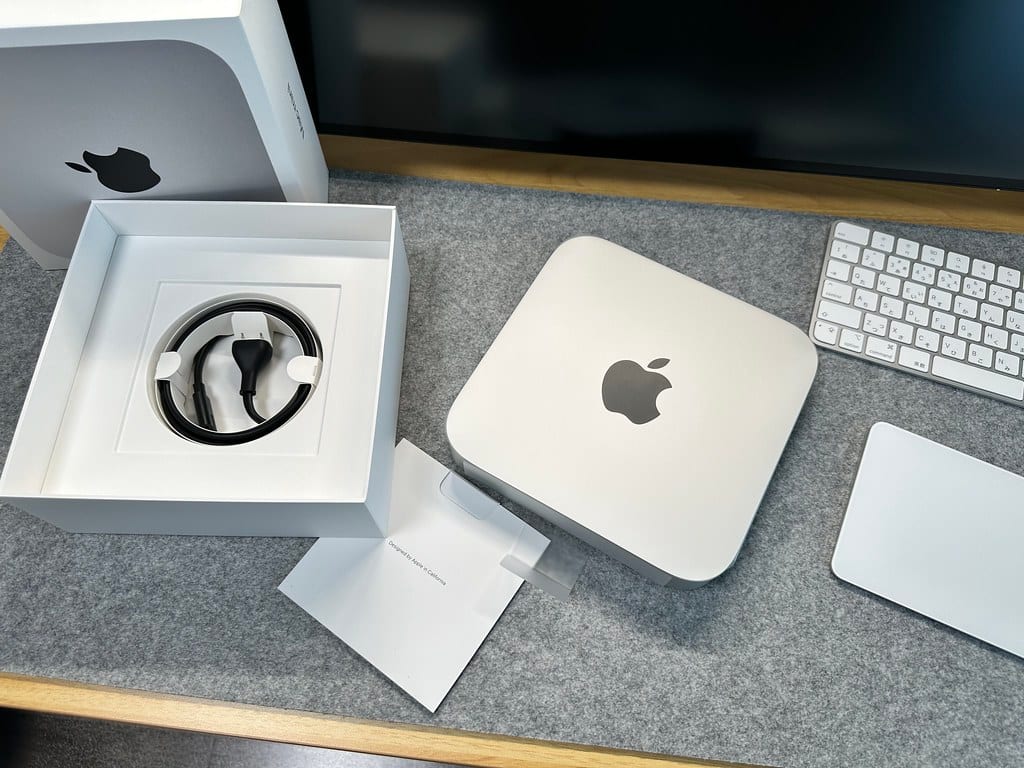
Be honest with yourself here. A Mac mini is the right call when the machine mostly stays put and you value a clean, quiet, low-profile desk. It's cheaper than an equivalent iMac, it hides better than a laptop-on-a-stand, and it turns your desk into a proper monitor-first workspace.
It's the wrong call if you need to pick your work up and move — a mini is a desktop, full stop, and a laptop with an external monitor gives you the same clean desk at home plus a machine you can take to the sofa or a cafe. If portability matters even a little, a laptop docked to a display is the honest answer. If your work lives at one desk, the mini gives you a tidier, often more powerful-per-dollar setup for the money.
For how the mini fits alongside the monitor, lighting and cabling as a whole, the complete desk setup guide walks the full build. And to see how bare a monitor-first desk can actually get, browse the desk setup galleries — the cleanest ones almost always have the computer hidden.
About this article
- Published by Ravi Menon — Ravi Menon builds, breaks down and rebuilds home-office desks and writes about the results for The Desk Nook.
- Claims fact-checked against cited sources: Yes
Sources
Keep reading

A complete budget desk setup under $300 (2026)
You can build a genuinely comfortable desk setup for under $300 if you spend on the parts your hands and eyes touch and save everywhere else. Here's the whole…
The complete guide to building a desk setup (2026)
If you want the short version: build from the desk up , spend money where your hands and eyes touch the setup, and route the cables last but never skip them. A…

Tasteful RGB desk setup ideas that don't look gamer-y
The whole difference between RGB that looks calm and RGB that looks like a gaming cafe is restraint. Pick one accent color, keep a warm white base, hide the…