
Dual-monitor desk setup ideas for productivity
When a second monitor actually helps, how to match two screens so the pair is not jarring, and how to position them at eye level without wrecking your desk.
Some links on this page are affiliate links. If you buy through them we may earn a small commission at no extra cost to you. As an Amazon Associate we earn from qualifying purchases. It never changes what we recommend.
A second monitor helps most when your work has two things you need to see at once: code and a browser, a spreadsheet and the email it came from, a video call and your notes. If that is your day, add the screen. If you mostly do one focused thing at a time, a single good monitor — or one ultrawide — will usually serve you better than two mismatched panels crammed together. Below is how to decide, and how to set up a pair that feels like one workspace instead of two arguing screens.
Some links below are affiliate links; see the disclosure at the end.
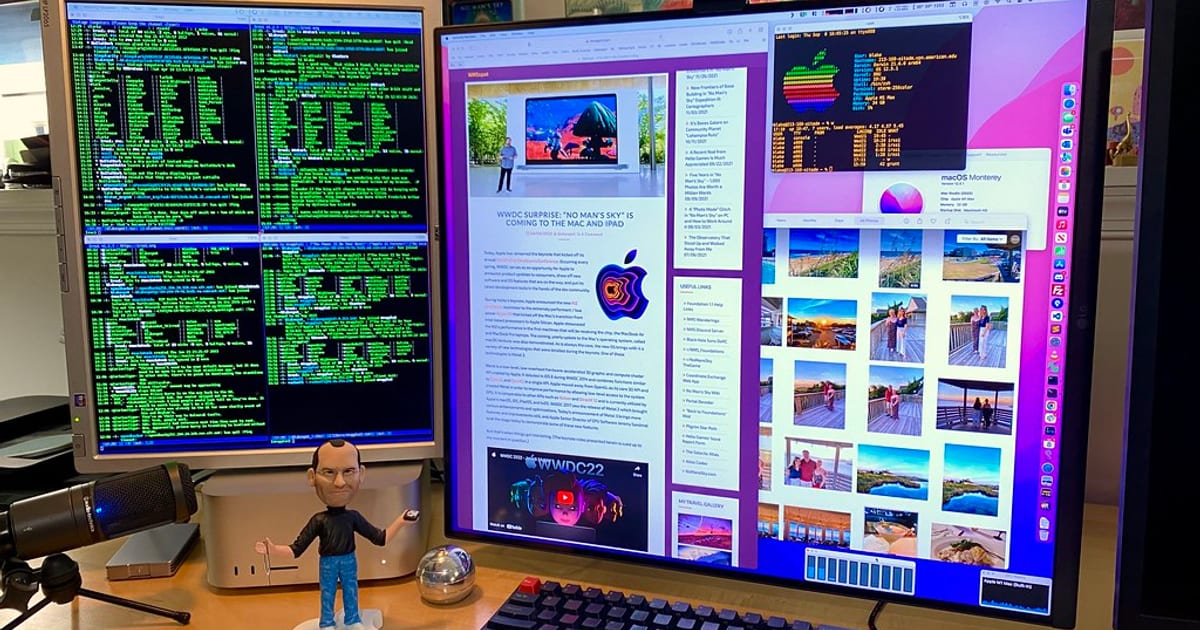
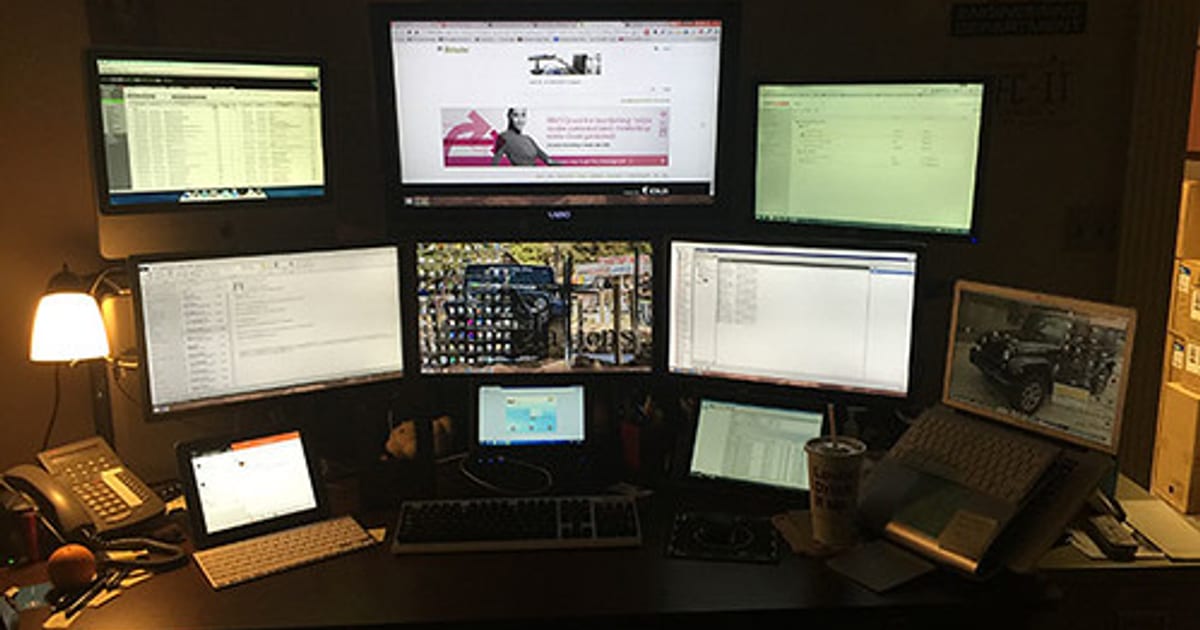
See how other people have laid theirs out in the monitor setup galleries before you commit to a shape.
When a second monitor genuinely helps — and when an ultrawide wins

Two screens shine when you keep separate contexts side by side and switch between them constantly. Reference on the left, work on the right. A terminal on one, the app it drives on the other. The physical gap between panels becomes a useful divider: this side is input, that side is output.
An ultrawide (a 34-inch 21:9, say) wins when your work is really one wide surface — a long timeline in a video editor, three code columns in one window, a giant spreadsheet. You get the width without a bezel running down the middle of your view, and only one cable and one arm to deal with. The honest trade-off: an ultrawide costs more than two modest 24-inch panels, and it cannot physically separate contexts the way a real gap between two screens can.
Rough rule: if you constantly compare two things, go dual. If you spread out one thing, go ultrawide.
Match the pair so it is not jarring
The most common mistake with dual monitors is buying a second screen that does not match the first. Your eyes notice every mismatch, all day.
- Size and resolution. Match both. Two 27-inch 1440p panels sit right; a 24-inch 1080p next to a 27-inch 4K means text is a different physical size on each, and you will keep re-adjusting. If you already own one good screen, the cleanest move is buying its twin.
- Panel type and brightness. Two IPS panels roughly matched on brightness and color look like one desk. An old TN panel next to a new IPS one will always read as the odd one out, especially on whites.
- Stand or arm height. The tops should line up. More on that below, because this is where most setups quietly go wrong.
If you are starting fresh, buying two identical monitors at once is the surest way to a matched pair. Based on published specs and long-term owner reports, a matched pair of 27-inch 1440p IPS panels is the sweet spot for most desks: sharp text, sane scaling, and a size that fits a standard depth without pushing the screens too far back.
Primary straight ahead, or both angled?
Two schools, and the right one depends on how you use the screens.
One primary, straight ahead; secondary angled in. Best when you spend most of your time on one screen and glance at the other. Put the main monitor directly in front of you so your neck stays neutral, and angle the second one inward beside it. Your dominant work stays in the ergonomic sweet spot; the helper screen is a short glance away.
Both angled, meeting in the middle. Best when you truly split your attention 50/50. Center the seam where the two screens meet on your body and angle each panel inward so they form a shallow arc facing you. Neither screen is dead ahead, but neither forces a long neck turn either.
Cornell's ergonomics guidance puts the primary screen straight ahead with the top near eye level and roughly an arm's length away, so lean toward the first layout unless your work genuinely lives on both screens equally. Whatever you pick, the screen you look at most should never be the one you have to twist your neck to see.
The screen you use 80% of the time belongs directly in front of you, not off to one side. A lot of neck strain from dual setups traces back to putting the primary monitor to the left or right and the "secondary" in the center. Point your body at the work.
Get the tops to eye level — monitor arms earn their keep here
Two stock stands almost never land at the same height, and stock stands rarely go high enough anyway. The fix is a dual monitor arm. It lets you set each panel independently so the tops align and both sit at eye level, and it clears the clutter of two bases off the desk.
Aim for the top of each screen at or just below eye level, tilted back maybe 10 to 20 degrees so you are looking slightly down at the center of each. A good monitor arm makes matching two heights trivial; check the arm's stated weight range and VESA pattern (usually 75x75 or 100x100 mm) against your panels before buying. We go deep on the numbers and mounting in our guide to monitor arms and desk ergonomics.
Cables and power for two
Two screens double your cabling, so plan it once instead of fighting it forever.
- Inputs. Confirm your machine can actually drive two displays at the resolution and refresh you want. A laptop may need a dock or a DisplayPort daisy-chain; check the ports before you buy.
- Matching cables. Use the same cable type on both where you can (two DisplayPort, or two HDMI) so behavior is consistent.
- Power. Two monitors plus a machine is three plugs minimum. Put them on one switched surge strip so the whole desk powers down together, and route the cables up the arm's channel to keep the desk surface clean.
The honest caveat: two mediocre screens lose to one good one
If your budget only stretches to two cheap, mismatched panels, buy one good monitor instead. A single sharp, well-placed screen at the right height beats two dim, uneven ones that force your eyes to re-adjust every time you glance across. Dual is a productivity upgrade only when the pair is matched and positioned well; otherwise it is just more stuff to look at.
If your work leans heavily on code, logs, or long documents, also consider that your second screen does not have to be landscape — a rotated panel changes the math. We cover that in vertical monitor setups for coding. And if you have not bought the panels yet, how to choose a monitor for working from home covers the size, resolution and panel type to look for before you commit to a pair.
Putting it together
Add the second screen when you genuinely compare two things at once; reach for an ultrawide when you spread one thing wide. Match size, resolution and panel type so the pair reads as one surface, put your main screen straight ahead, lift both tops to eye level on a dual arm, and run the cables and power as one tidy job. Do that and two screens feel like a bigger desk rather than a busier one. When the monitors are dialed in, square away the rest with the complete desk setup guide, and browse more layouts under monitors.
Disclosure: some links above are affiliate links. If you buy through them we may earn a small commission at no extra cost to you. Recommendations are based on published specs and long-term owner reports, not paid placement.
About this article
- Published by Ravi Menon — builds, breaks down and rebuilds home-office desks and writes about the results for The Desk Nook.
- Claims fact-checked against cited sources: Yes
Keep reading
How to choose a monitor for working from home (2026)
For most home office work the sweet spot is a 27 inch 1440p QHD monitor , IPS panel, 60–75Hz, with a height adjustable stand or a VESA mount. That combination…
 Gallery7 photos
Vertical monitor setup for coding — is it worth it?
Short answer: a vertical portrait monitor is worth it as a secondary screen for code, and rarely worth it as your only screen. Rotated 90 degrees, a monitor…