
How to choose a monitor for working from home (2026)
You don't need the biggest or fastest screen — you need the right size, resolution and panel for desk work. Here's how to pick a monitor that's sharp, easy on the eyes and the right price.
Some links on this page are affiliate links. If you buy through them we may earn a small commission at no extra cost to you. As an Amazon Associate we earn from qualifying purchases. It never changes what we recommend.
For most home-office work the sweet spot is a 27-inch 1440p (QHD) monitor, IPS panel, 60–75Hz, with a height-adjustable stand or a VESA mount. That combination gives you crisp text, enough desktop space for two windows side by side, and colors that stay accurate off-angle — without paying for gaming specs you won't use at a desk. Bigger isn't automatically better: a 32-inch 1080p screen looks soft up close, while 27-inch at 1440p hits the pixel density where text is sharp at arm's length. Get the size and resolution right first; refresh rate and HDR come after. Here's how to choose without overpaying.
The links below go to search-scoped listings so you can compare current options. Some are affiliate links; see the disclosure at the end.
Size and resolution go together — this is the key decision
The number that actually matters is pixel density (how many pixels per inch), because that's what makes text sharp. Match size to resolution:
- 24-inch, 1080p: fine and cheap, good for a second screen or a tight desk. Text is okay, not crisp.
- 27-inch, 1440p (QHD): the home-office sweet spot. Sharp text, real room for two windows. Buy this if you're buying one.
- 27-inch, 4K: gorgeous text, but you'll likely need display scaling (~150%) so the UI isn't tiny — worth it if you read and write all day and want the sharpest text.
- 32-inch, 4K: big and sharp, great for spreadsheets and design. Needs a deeper desk to hit arm's-length distance.
- Avoid 32-inch at 1080p — the pixels are big enough to look soft up close.
For a small desk, don't just shrink the screen — read small desk setup ideas, because a monitor arm often matters more than size there.
Ultrawide, dual, or one good screen?
A common fork. Here's the honest guide:
- One good 27-inch: simplest, sharpest, cheapest per quality. Start here.
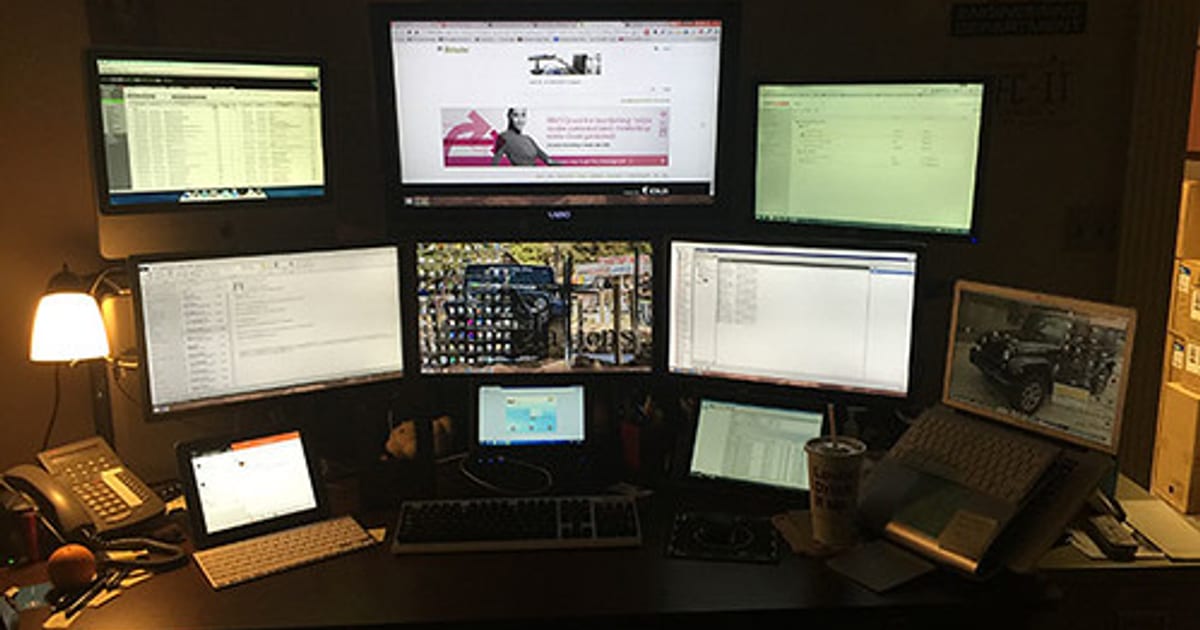
- Dual monitors: best if you reference and write at the same time — docs on one, work on the other. Angle them into a shallow V; don't shove them edge to edge. Full playbook in dual monitor desk setup ideas.
- Ultrawide (34-inch 1440p): one seamless wide canvas, no bezel down the middle — great for timelines, code, and wide spreadsheets. Takes one cable and one arm instead of two. Downside: vertical space is limited, and it wants a deep desk.
- Vertical/portrait secondary screen: rotating a monitor 90° is superb for reading long documents and code — see vertical monitor setup for coding.
Panel type: get IPS, skip the drama
- IPS — the default for work. Accurate color, wide viewing angles so the image doesn't shift when you glance at the edge. Get this.
- VA — deeper blacks, but colors and text can shift off-angle. Fine for media, less ideal for all-day text.
- TN — cheap and fast, poor angles. Skip for desk work.
- OLED — stunning contrast, increasingly common, but pricier and carries some burn-in risk with static UI (taskbars, docks) shown for hours. Tempting, not necessary for office work.
The specs people overpay for (and the ones that matter)
Refresh rate: 60–75Hz is plenty for documents, email and calls. 120Hz+ is a gaming feature — nice for smooth scrolling, not worth a premium for work alone.
HDR: most cheap "HDR" monitors don't get bright enough to matter. If you want real HDR, look for VESA DisplayHDR 600 or higher; below that it's a checkbox, not an experience.
What actually matters for a workday: a height-adjustable stand or VESA mount (so you can hit eye level — the single most important thing, and why a monitor arm is such a good buy), a matte/anti-glare coating if your room has windows, flicker-free + a low-blue-light mode for long sessions, and enough ports (a USB-C monitor that also charges a laptop over one cable is a genuinely nice tidiness win — see laptop stands and docking stations).
The buy-it rule: 27-inch, 1440p, IPS, height-adjustable or VESA. Nail those four and the monitor will serve you for years. Everything past that list is a preference, not a requirement.
Position beats specs
A mid-range monitor at the right height and distance beats a premium one placed badly. Whatever you buy, set the top of the screen at or just below eye level, about an arm's length away, tilted up slightly — Cornell's ergonomics guidance is blunt that position removes most neck and eye strain. The full setup order is in the complete guide to building a desk setup, and the day-one posture check is the ergonomic desk setup checklist.
Next steps
For most people: a 27-inch 1440p IPS monitor with a height-adjustable stand or an arm. Compare monitors on Amazon and monitor arms on Amazon, see multi-screen setups in the monitor setup galleries, and read more in the monitors topic.
About this article
- Published by Ines Okafor — Ines Okafor sets up monitors, lighting and ergonomic workspaces and writes about what actually reduces strain for The Desk Nook.
- Claims fact-checked against cited sources: Yes
Keep reading
 Gallery7 photos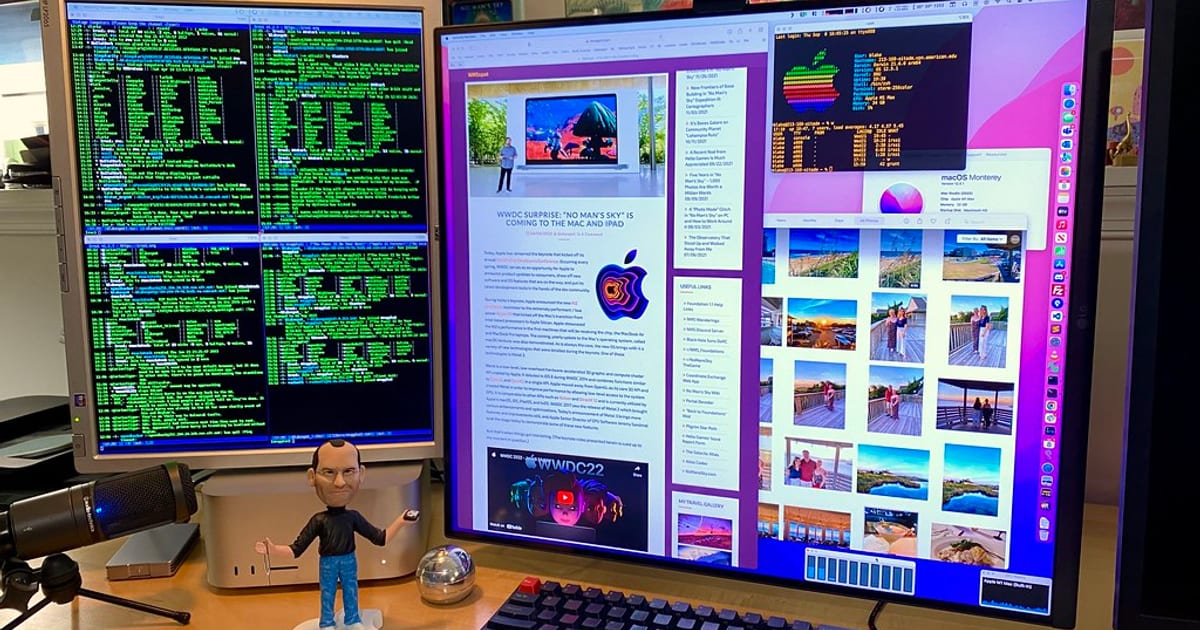
Dual-monitor desk setup ideas for productivity
A second monitor helps most when your work has two things you need to see at once: code and a browser, a spreadsheet and the email it came from, a video call…
Vertical monitor setup for coding — is it worth it?
Short answer: a vertical portrait monitor is worth it as a secondary screen for code, and rarely worth it as your only screen. Rotated 90 degrees, a monitor…